New Programs


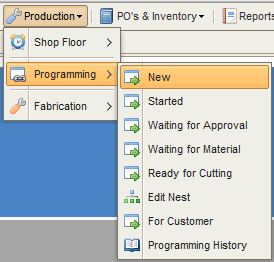
Navigate the the menu shown in the screenshot :
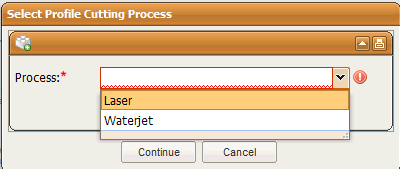
If your system has more then one profile cutting process set within then the following pop up will prompt you to select the profile cutting process you would like to see the programming list for :

The list shown above will display all jobs that require a nesting program .
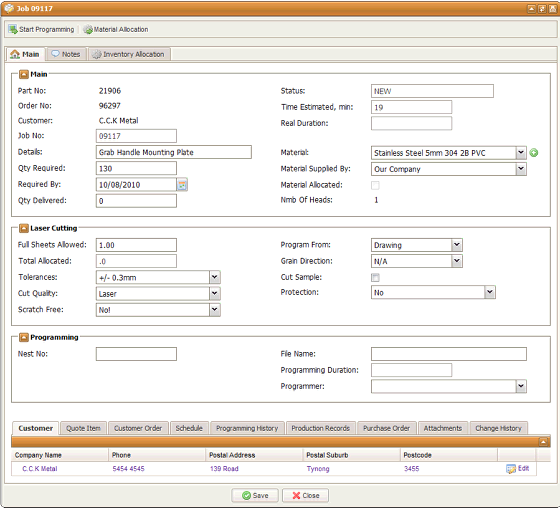
2. pressing this option will change the status of this job from "Not Approved" to "Approved" . All new parts have a status of "Not Approved" ( refers to geometry ) . Once the geometry is approved the status will change an programming can proceed.
3. pressing this option will commence the programming process . If the part is not approved it will take the user to the approval screen :
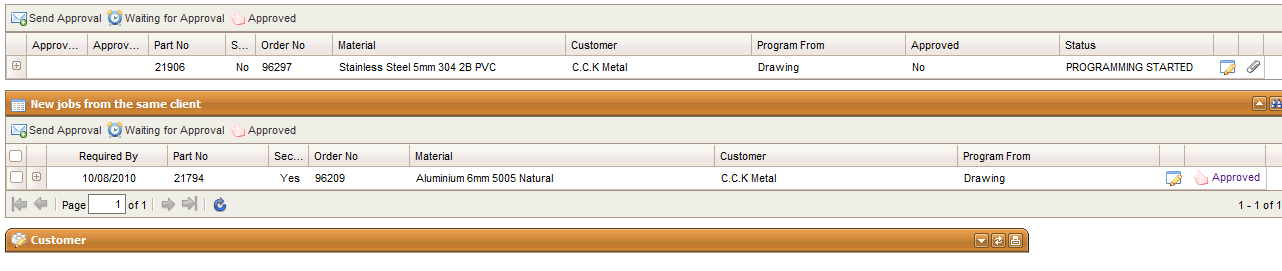
If the part is approved it will take the user to the actual nest screen :

You will notice that from here LQ will offer the user the option to add the selected job to another nest if any available that have the same type material . This can be done via the button indicated by the arrow. This method will dramatically increase the efficiency and material usage. All nest that are not yet printed in production will be featured here . If however you would like to start a new nest just select the "Create Nest" button top left .
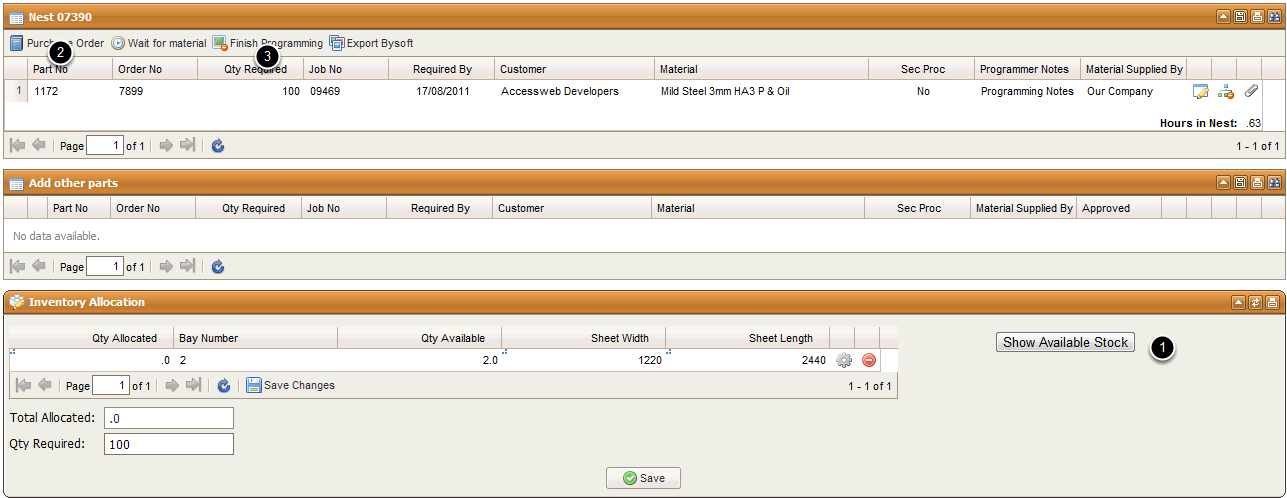
The nest screen displays the material allocation form inventory . Select "Show Available Stock" (1) and the material availability will be displayed . If no material is available then a purchase order can be raised by pressing the button " Purchase Order" (2) . The material requisition will default to the supplier product used in the quote for this job. If the details need to be changed the programmer can modify the raised PO. This job will be linked with this purchase order .
When the nest process is complete please select the "Finish Programming" button the be taken to the next step :
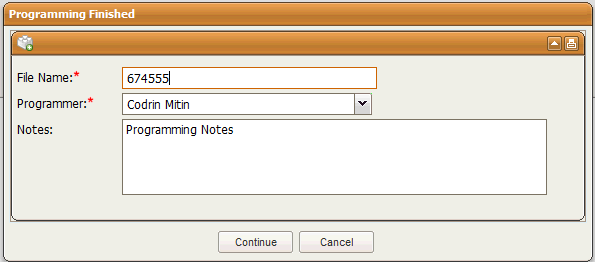
Enter the File name ( the actual name of the CNC file generated and needed to cut the nest ) Click Continue
If you have the remnant feature turned on the following pop up will be displayed :
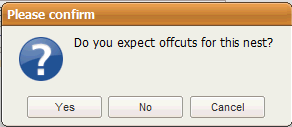
If you seLect Yes , the operator that will cut this job will be prompted to enter the off-cut size and this will be entered into you inventory ready to be used for another job .
If you select No , the operator will not be prompted for an off-cut entry.