Receive PO


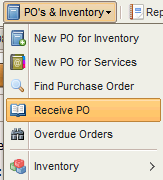
Access the Receive PO Menu as per the screenshot below :
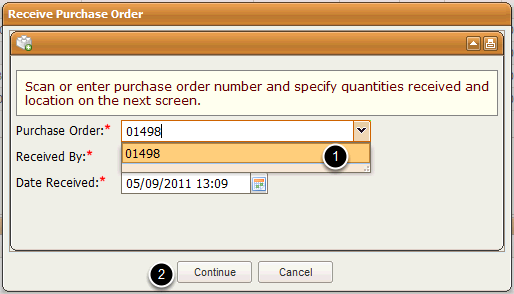
Enter the PO number ( or scan the PO bar-code ) then click Continue :
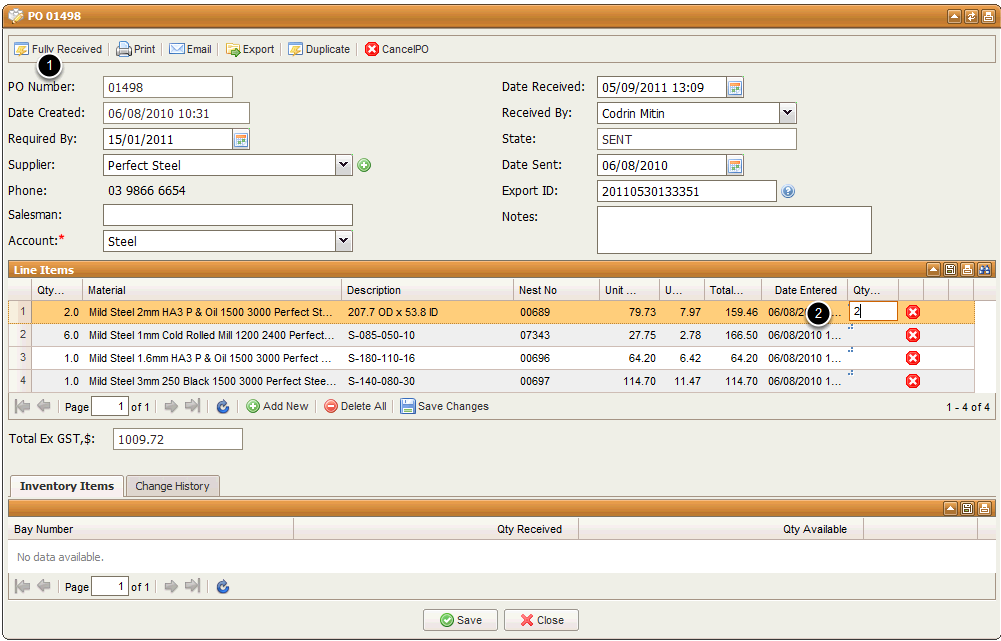
Select "Fully Received" if all items are received or enter the respective received quantities as per instructions below ( 2 ) .
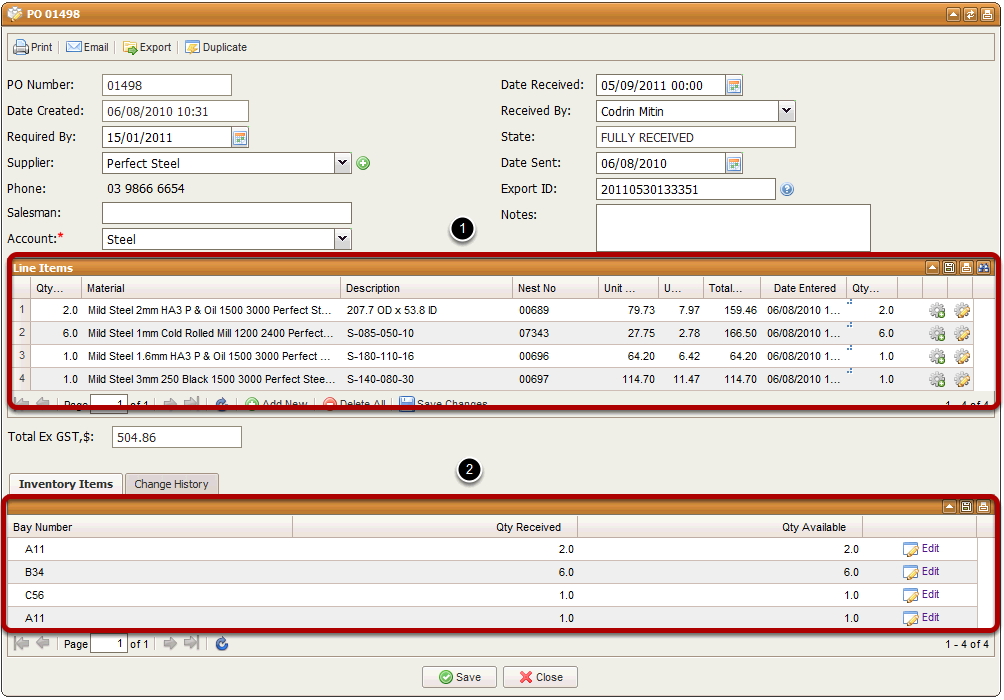
If this is a material or spare parts and consumables type PO then you will notice an icon linked to each line item after it has been received :
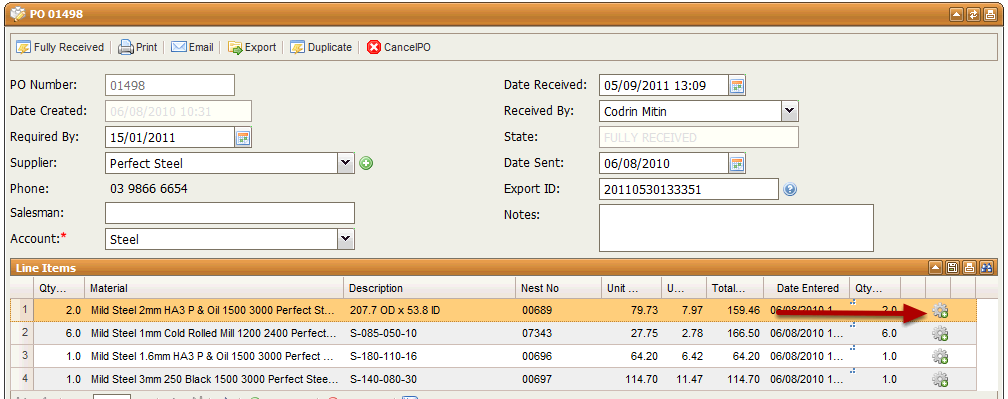
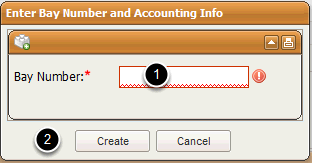
Enter the Bay Number after clicking on each icon for each line item . This is the physical location where the material will be stored in your operation. Click Create once done.
Finally you can view now the inventory items associated to each received line item. Note the new icon next to each line item linking the inventory record .